Introduction
Buy the Retroid Flip or 3+ here: https://tinyurl.com/2kzt4e87
For alot more technical updates join my Discord: https://discord.gg/BU7CcsytyQ
This is the most in-depth guide I have made to date. Please use these written notes AND the video to guide you through the process of setting up your device. While Android devices are really great, the setup can be daunting. This guide has broken down each key element into small parts so you can take it step by step and get the most out of your device.
Watch the video here:
Table of Contents:
PART 1 - INITIAL SETUP, ROMS, BIOS AND EMULATORS
What you will need:
- An SD card - I have a 128GB b ut I actually recommend a 256 or 512GB for the bigger files like Dreamcast, Gamecube, PS1, PS2 etc.
- A USB-C cable
- A computer with internet (I am using a Windows laptop but Mac will work here as well
Button Layout
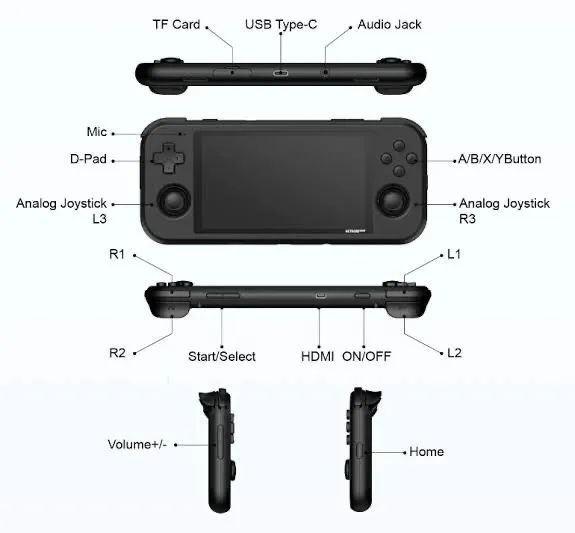
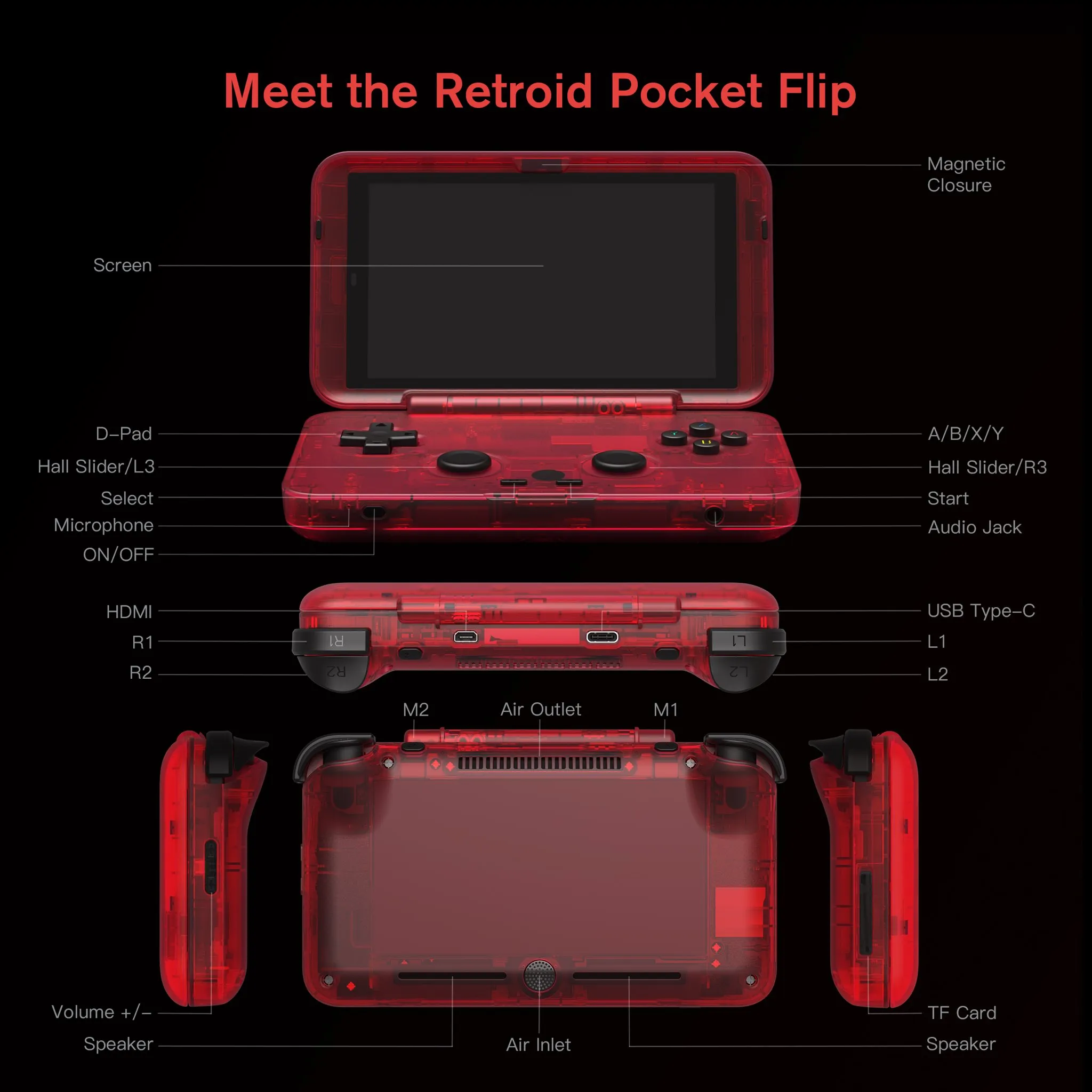
The only difference between these two is the obvious flip screen, the M1 and M2 buttons and the active cooling.
Initial setup of Android 11
- Language choice
- Sign in to WIFI
- Timezone setup
- Enable Google Play services
- Choose to install ScummVM, Redream, , AetherSX2, PPSSPP, M64 Plus FZ, Moonlight, Citra and Dolphin for Handheld because these are the ones that I found were nicely set up for the RP3+ by Retroid
- Update Android if necessary
- Start off with the Retroid Launcher
- Install memory card, Android should automatically set it up. Choose external storage (you can also select internal storage but then you can’t remove the card and plug it into your laptop to transfer ROMs)
- Go to the Retroid launcher and tap setup, and then allow it to create a file structure on your card and on your device (see video)
Installing ROMs and BIOS files
The list of systems you can emulate is quite extensive. For the higher end systems, like GameCube and PS2 it is recommended to source PAL / 50fps games to improve performance.
Here’s a fairly comprehensive list of supported systems on Android:
| Home Consoles: | Handheld Consoles: | Home Computers: | Arcade: |
|---|---|---|---|
| Panasonic 3DO Atari 2600 Atari 5200 (and 800) Atari 7800 Atari Jaguar Colecovision PC Engine (TurboGrafx-16) PC Engine CD (TurboGrafx-CD) Nintendo Entertainment System / Famicom Disk System Super Nintendo Nintendo 64 Nintendo GameCube Sega SG-1000 Sega Master System Sega Genesis Sega CD Sega 32X Sega Saturn Sega Dreamcast Neo-Geo / CD NEC PC-FX Sony PlayStation Sony PlayStation 2 Vectrex | Atari Lynx Game and Watch Nintendo Game Boy Nintendo Game Boy Color Nintendo Game Boy Advance Nintendo DS Nintendo 3DS Nintendo Virtual Boy Sega Game Gear Neo-Geo Pocket / Color Sony Playstation Portable Wonderswan / Color | Amiga Amstrad CPC Atari ST Commodore 64 (and C16/Plus4, C128) Intellivision MSX PC (DOSBOX) ScummVM ZX Spectrum | MAME Final Burn Neo Neo-Geo / CD Atomiswave Naomi |
There are quite a few good articles online about ROM file types, I like to use AmberELEC’s website for reference on these things: Supported Systems | AmberELEC - this is Linux-specific but it gives you most of the available file types for each system. Here are some of the file types I am using:
[see video]
When you plug in your device for the first time via USB you will be given the option to use the SD card as Handheld Storage or as Portable Storage. I have been using Portable Storage without any issues, but I know some people prefer to use it as Handheld Storage - the only downside is that you can’t unplug the SD card and plug it into your computer for faster file transfer.
Now, plug your device into your computer, select “file storage” on the device and navigate to the Retroid Pocket drive in your computer. You can now navigate to your relevant folders and drag your Roms over. As mentioned, I have used internal storage for the older games and external storage for the newer, bigger games. At this point you can drag your bios files over to the external storage and the internal storage to avoid any future complications. You can check my video for a bit more detail on this.
BIOS files
Bios files are copywritten files that came with the original hardware to make the games operate. Although they are copywritten, you can actually find them quite easily.
Here is a list of the bios files you will need:
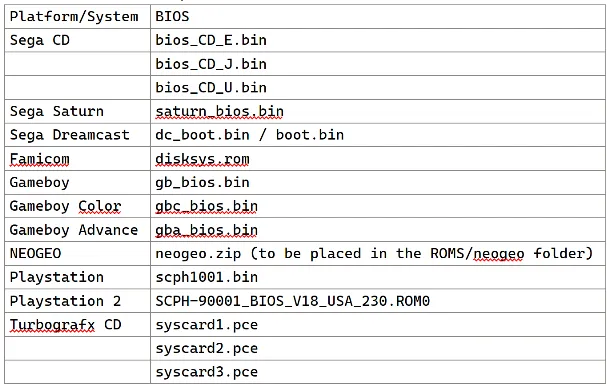
Make sure the BIOS files are on on the device storage and the SD card just to be safe. That way if you move files around in the future you won’t run into any trouble.
Add the BIOS files to: /RetroidPocketGames/BIOS (on your device and on your SD card)
Downloading Emulators
The following table outlines the most important emulators you will need to get started. You don’t necessarily need them all. I have indicated where to get each emulator and some specific notes on some of them.
| Emulator | System | Where to download | Notes |
|---|---|---|---|
| Yaba Sanshiro 2 | Sega Saturn | Playstore | You can buy the paid version to remove ads and to allow for lightgun capabilities |
| Vita 3k | Playstation Vita | [https://Releases · Vita3K/Vita3K-Android (github.com).org](https://github.com/Vita3K/Vita3K-Android/releases/) | Experimental but being updated regularly |
| RetroArch | Multi | www.retroarch.com | Maybe rather download from App store to keep it updated, otherwise get the very latest release from their website. |
| Redream (Recommended) | Dreamcast | Retroid / www.redream.io | Compiled version from Retroid seems good - you can install this at initial setup of your device |
| Flycast | Dreamcast | Releases · flyinghead/flycast · GitHub | You don’t really need this, most games work better on redream. |
| Drastic | NDS | Playstore | Buy it - better than MelonDS |
| PPSSPP / PPSSPP Gold | PSP | Retroid / Playstore | Compiled version from Retroid seems good - you can install this at initial setup of your device. Use the paid Gold version for better performance and features like auto resume. |
| M64Plus FZ | N64 | Playstore or Retroid | You can install this at initial setup of your device OR via the playstore |
| Dolphin emulator | Gamecube/Wii | Playstore | This is the full app,you also. Have the option of using Retroid’s handheld version below. I am undecided on this. The handheld version optimizes it for the Retroid device but the main version is ensured ongoing updates and support. |
| Dolphin Emulator for Handheld | GameCube/Wii | Retroid | NOTE: I decided while making this that I will use the Retroid version due to it offering lower resolutions for better performance. |
| Citra | 3DS | Retroid | Retroid have compiled this mostly with controller setup in mind |
| Citra Enhanced Beta | 3DS | Releases · weihuoya/citra (github.com) | I use this one personally, it has a few quirks but performance is better |
| AetherSX2 | PS2 | Final Android release: Download | There is a newer ad-free version called NetherSX2 but it’s installation is still a bit tricky |
| Duckstation | PS1 | Playstore |
Handheld Settings
- Disable “Prevent press the Home button accidentally” unless you have been having an issue pressing the home button during gameplay. With this you will only need to press the home button once to return to the home screen/front end.
- Controller style - up to you but I mostly use the device for PSP so I have set it to Xbox
- To disable the side menu, swipe down from the top, swipe to reveal the system icons like wifi etc, turn “Floating Icon” OFF
PART 2 - SETTING UP EMULATORS AND DAIJISHO
Setting up each emulator
The main tasks between all these emulators is to make sure you connect the app to where the relevant ROMS are stored, whether they’re on your device or on the SD card. Then you need to make sure the app recognises your controller inputs and then there are sometimes a few other things to set up.
I have created this part of the guide to try and make these emulators have similar shortcuts so that the system feels a bit more unified.
A lot of these emulators have a swipe from left feature to open the in-game menu, if all else fails.
Here are my specific tips for each emulator (see my video for more info):
- Yaba Sanshiro 2 Pro (Sega Saturn)
- Press START
- Press ACCEPT
- Press the 3 stripes at top left
- Press settings
- Select game directory > ADD > [navigate to your roms] > Use This Folder > OK
- Video Core: OpenGL
- Frameskip > ON
- Player 1 Input Device > X-Box Controller
- Edit Key Map
- Up - Dpad up
- Down - Dpad down
- Left - Dpad left
- Right - Dpad right
- L trigger - L2
- R trigger - R2
- Start - start
- A - Y
- B - B
- C - A
- X - L1
- Y - X
- Z - R1
- Analog X - Left Analog Stick Horizontal
- Analog Y - Left Analog Stick Vertical
- Analog L Trigger - L2 (same as above)
- Analog R Trigger - R2 (same as above)
- Menu - Select
- Sound Engine > Legacy
- Sound Time Syncronization > Real Time
- Performance - Use PAL games, close background apps, drop screen resolution
Vita3k this is possibly a video for another day but I will say here that the .zip roms work best and Vitamin encoding does NOT work.
-
Redream (Sega Dreamcast) ready compiled by Retroid.
- GAMES > Go to library > Add directory > RP3Plus > RetroidPocketGames > ROMs > Dreamcast
- INPUT > Port A > Input Device > Retroid Pocket Controller
- BIND CONTROLLER - select each option and press the button you want assigned
- Left joystick up - Analog L up (IMPORTANT NOTE: if you see two values entered with the analog stick, try again because you will have issues later on)
- Left joystick down - Analog L down
- Left Joystick left - Analog L left
- Left joystick right - Analog L right
- Dpad up
- Dpad down
- Dpad left
- Dpad right
- Left trigger - L1
- Right trigger - R1
- A button
- B button
- After you have mapped the above your X-box controller (if you chose this option) buttons will react differently as A and B
- Start button
- Turbo - skip
- Show VMU - skip
- Main menu - L2 (this is to make it the same as PPSSPP to ad to a unified system) / on the FLIP I have mapped the menu to M1
- Exit emulator - skip
- VIDEO > Game aspect ratio > 4:3 (I prefer to set this to 16:9)
- VIDEO > Frame skip > auto
- GAMES > open Crazy Taxi if you have it
- Press L2 > EDIT CHEATS > Widescreen > on (this is a widescreen hack which will have less graphical issues than simply setting it to 16:9)
- You will see some other cheats there, like LOTSA MONEY and INF GAME TIME, I like Infinite Game Time so I can just drive around and pick up lots of passengers)
- EXIT and open again to restart and enable your changes
- Go back into a game:
- If you want your changes to be game specific, CUSTOM CONFIG turned ON will save your settings specific to that game. So for example if you decide to go with 16:9 for the system but you find a game is not working very well in that aspect ratio you can set CUSTOM CONFIG to ON and then set the aspect ratio to 4:3
- Performance - Use PAL games, close background apps, drop screen resolution, check the compatility sheet.
-
Drastic (NintendoDS) buy it ($4.99) on the Playstore.
- Change Options:
- Change save state folder: General>System Directory>Scoped Storage Folder>ROMs>NintendoDS
- Virtual Gamepad > Always show Start and Select buttons > OFF
- External Controller:
- Select Key Mapping > No mapping
- Map Control:
- X - X
- Y - Y
- B - B
- A - A
- R - R1
- L - L1
- Start - Start
- Select - Select
- Up - Dpad Up
- Right - Dpad right
- Down - Dpad down
- Left - Dpad left
- Map Special:
- Screen-swap - R3
- Fast forward - SKIP
- Quick-Save - SKIP
- Quick-Load - SKIP
- Open Menu - L2 / M1 ON RP FLIP
- Up-Left - Analog L up
- Up-Right - Skip
- Down-Left - Analog L down
- Down-Right - Skip
- 1/2 screen swop - Skip
- Microphone noise - Skip
- Toggle Auto-Fire - Skip
- Pointer down - Skip
- General Settings:
- Autosave - On Pause/Suspend
- Savestate Overwrite needs Confirmation > OFF
- Default layout > Landscape x:1
- Open a game:
- Use your L3 to toggle the screens
- Press L2 / M1 to open the menu, disable the controller overlay (I cant find a way to do this in the settings so you will have to do this for each game, but once it’s done it stays like that)
- You can also open settings and play with the screen layout
- Performance - close background apps, drop screen resolution
- Change Options:
-
PPSSPP (PlayStation Portable)
-
Settings:
-
GRAPHICS> vulkan (the GitHub I recommend below says OpenGL but I have found Vulkan to work well for God of War and Assassin’s Creed)
-
GRAPHICS> Auto frame skip on
-
GRAPHICS> fullscreen off
-
GRAPHICS> 3x resolution
-
CONTROLS> On screen touch controls off
-
CONTROLS>CONTROL MAPPING
- Depending on if you set your input to retro or xbox in the “Handheld Settings” you may want to reverse the X and O buttons
- You will want to note that the menu/pause is mapped to L2 / M1
-
Okay now lets start up a game by pressing Load and then navigating to a game and tapping on it
-
Now press L2
-
I want to show you how to tweak each game:
- Let’s say for example we want God of War to play at 2x resolution rather - tap on Settings
- Scroll down to “Rendering Resolution” in the Graphics menu. Now tap on it and select 2x PSP
- Now press back and tap on “Save Game Config”, this will save the configuration for this game.
- Another tweak you might be using is to switch from Vulkan to OpenGL under Graphics>Backend - when you do this, you will need to restart PPSSPP and then just say “Save Game Config”.
- These are the two major performance tweaks I have been doing while playing PSP on the RP3+
-
Performance - Close background apps, switch to OpenGL backend, drop resolution, increase frame skip amount, check the spreadsheet.
-
-
Duckstation (PlayStation 1)
-
Tap NEXT
-
Import BIOS (locate your scph1001.bin file)
-
Tap NEXT
-
Tap + and locate your games and tap USE THIS FOLDER
-
Tap NEXT
-
Tap on three stripe at top left
-
APP SETTINGS
- App settings > Graphics > Resolution Scale > 5x
- App settings > Graphics > Widescreen hack - ON (This will stretch certain games to a wider screen, you can disable this if you want a more authentic screen emulation)
- App settings > Interface > Save State on Exit
-
CONTROLLER SETTINGS:
- Controller settings > Touchscreen > Touchscreen Controller View > None
- Controller settings > Port 1 > Controller Type > Analog Controller (DualShock)
- Controller settings > Port 1 > Perform Automatic Mapping > Retroid Pocket Controller
- Controller settings > Hotkeys> General > Open Pause Menu > L2 / M1 on RP FLIP
- Controller settings > Hotkeys > Save States > Load From Selected Slot > R1
- Controller settings > Hotkeys > Save States > Save To Selected Slot > R3
- If you want, you can save these settings with a profile name by Settings>Save Profile, give it a name and tap Done and then Create, and then Save. Now if you mess anything up you can always load the profile by tapping the folder icon at the top right.
-
Performance - Use PAL games, close background apps, reduce screen resolution
-
-
Dolphin (GameCube and Wii) - note: I decided to use the Retroid version below due to it allowing 0.3 and 0.5 resolution, allowing higher end games to play, albeit at a low resolution.
- Enable usage statistics reporting YES
- GameCube > add games > [navigate to games] Use This Folder
- Wii > same as above
- Settings > Config > General > Enable Savestates
- Settings > Config > Paths > Search Subfolders for Game Files
- Settings > Graphics Settings > Enhancements > Internal Resolution > 1x Native
- Settings > Graphics Settings > Aspect ratio > Auto
- Settings > GameCube Input > Emulated >
- Z - L3
- C stick - Analog R
- Open a game
- Left swipe to menu
- Overlay Controls > Adjust controls > set opacity to 0
-
Dolphin for handheld (Retroid version)
-
It’s important to note that the Compatibility spreadsheet I have shared below gives detailed guidelines for each game. The beauty of using the Daijisho frontend is that you can download a few emulators and assign them to different games. I highly recommend the spreadsheet if you are trying to play a specific game.
-
Specifically, I recommend that you try MMJR and MMJR2. Although no longer supported, these offer some excellent performance benefits. For example I set Metroid Prime up with MMJR and it’s performing far better. Although this emulator is not without glitches.
- Access photos ALLOW
-
- [navigate to roms] select Use This Folder
- Settings > General > Enable Savestates ON
- Settings > Graphics > Vulkan (for most games - check spreadsheet)
- Settings > Graphics > Enhancements > Internal Resolution > .5x Native - you can increase this for games that perform a bit better.
- Settings > Paths > Search Subfolders for Game Files ON
- Tap the floppy disc icon at. The top right to save
- Controller icon (Top Right) > GameCube Controller 1 > Emulated >
- Tap on each item and assign the same button (see my video) - below are the two that may be confusing:
- Control Stick is the left analog stick (see video)
- C stick is the right analog stick (see video)
- Z - L3
- Tap the floppy disc icon at the top right or save
- There is unfortunately no way to map a button to open the emulators main menu (I have tried to keep this as L2 on all the systems), so you will need to swipe right from the left side of the screen to do things like create a savestate or close the game.
- Performance - Switch Vulkan/OpenGL, use PAL games where possible, close background apps, reduce screen resolution
- Additional performance boost: Also look into Dolphin MMJR and MMJR2 - these are two unsupported Dolphin forks that drastically improve performance and are recommended in the compatibility sheet linked below. However, it does not link up seemlessly with Daijisho so I don’t want to make it my official recommendation for this guide.
-
Citra (Nintendo 3DS) (Retroid version)
- Pop-up screen tap OK
- Tap ALLOW for photo and media access
- Tap + at the top right
- Navigate to your ROMs
- For the external SD card tap the three dots at the top twice.
- Now tap on the folder with the random letters, this should be the SD card
- Go to RetroidPocketGames > ROMs > 3DS > OK (my version crashes every time I do this, just open the app again)
- Tap the settings cog at the top right
- Screen layout > Large (you can always change this)
- Internal Resolution > 1x
- Tap on the 3 dots on the top right and select INPUT BINDING
- Tap the letter and then press the corresponding button
- Main stick - Left analog stick
- C-stick - Right analog stick
- ZL - L2
- ZR - R2
- Swap Screen - L3
- Settings - L2
- Exit the menu and open a game
- Press L2 to open the in-game menu
- Tap Settings> Hide Input Buttons ON
- Performance - close all background apps, if that does not work, set the Resolution to x1
-
M64Plus FZ (N64) (Retroid Version)
- ALLOW photos and media
-
-
START FILE PICKER > [locate your ROMs] > Use This Folder > Allow
-
- Wait for the scan to complete - this could take a while
- Tap the stripes at top left
- Tap Settings > Profiles > Controller > + New
- Name your profile and tap OK
- Tap on the buttons and map the corresponding buttons
- I mapped Z to L3
- Now press back and go. To Profiles > Select Profiles > Controller 1 Profile > [select your profile]
- To completely remove the on-screen overlay go to Settings > Touchscreen > Button opacity > 0%
- You will need to swipe left on the screen to open the in-game menu
- Performance - close background apps, reduce resolution
-
AetherSX2 (PlayStation 2) (Retroid Version)
- NB: At the time of writing this there has been some drama with the developers of this app, with the Playstore version being sabotaged. So, for now, rather use the Retroid version and disable automatic updates until this matter has been cleared up. Since this happened I have noticed adverts are now in the app and it no longer directly loads from Daijisho.
- Check the file types listed within the app for your reference
- Add Game Directory
- Navigate to your games and tap Use This Folder > Allow
- Try to open a game, tap YES and locate the bios file SCPH-90001_BIOS_V18_USA_230.ROM0
- Tap three stripes at top left > App Settings
- General > Save State on Shutdown > ON
- Graphics > GPU Renderer > Vulkan
- Graphics > Threaded Presentation > ON
- Advanced > Software Rendering Threads > 5 Threads
- Controller settings
- Touchscreen > Touchscreen Controller View > None
- Port 1 > Manually map each button
- Triangle - X
- Circle - A
- Cross - B
- Square - Y
- Etc.
- You will need to swipe left to open the emulator in-game menu
- If you want Hotkeys, this emulator does support dual-key hotkeys, so, for example: you can map “open pause menu” to L3+R3
- Performance - Use PAL games, try OpenGL, close all background apps
- NB: At the time of writing this there has been some drama with the developers of this app, with the Playstore version being sabotaged. So, for now, rather use the Retroid version and disable automatic updates until this matter has been cleared up. Since this happened I have noticed adverts are now in the app and it no longer directly loads from Daijisho.
-
Installing Retroid emulators after setting up / re-entering the setup wizard: Go to Settings > Handheld Settings > Advanced > Re-enter Setup Wizard > OK
-
Here is a nice Android emulator settings guide: https://github.com/Jetup13/Retroid-Pocket-2-Plus-Wiki/wiki/Emulator-Settings
-
Also check this compatibility list to tweak performance on higher systems: RP3+ Compatibility Sheet - Google Sheets
RETROARCH SETUP
- Download Retroarch from www.retroarch.com
- VERY IMPORTANT: Before exiting RetroArch, be sure to navigate to Main Menu > Configuration File > Save Current Configuration and press B/A (depending on your button setup) to save the current configuration. If you exit without doing this YOU WILL LOSE ALL YOUR CHANGES.
- First: Tap Core Info files, Update Assets, Update GLSL Shaders - wait for them to finish downloading.
- Change theme: SETTINGS > USER INTERFACE > XMB then Save Configuration - exit and restart RetroArch
- Install cores: MAIN MENU > ONLINE UPDATER > CORE DOWNLOADER
- Download the following:
- Arcade (FinalBurn Neo) (CPS1/2/3)
- Arcade (MAME 2003-plus)
- Atari - 2600 (Stella)
- Atari - 5200 (a5200)
- Atari - 7800 (ProSystem)
- Atari - Lynx (Beetle Lynx)
- Bandai - Wanderswan/Color (Beetle Cygne)
- NEC - PC Engine / CD (Beetle PCE Fast)
- Nintendo - Gameboy / Color (Gambatte)
- Nintendo - Gameboy Advance (mGBA)
- Nintendo - NES / Famicom (FCEUmm) OR (Nestopia) OR both
- Nintendo - SNES / SFC (Snes9x Current)
- Sega - MS/GG/MD/CD (Genesis Plus GX)
- SNK - Neo Geo CD (NeoCD)
- SNK - NeoGeo Pocket / Color (Beetle NeoPop)
- You can download as many as you like, they don’t take up a lot of space
- Map keys INPUT > Port 1 Controls - this should be automatically done. You may just need to swop your A and B button mapping to compensate for being in X-box mode via the Android handheld settings if you have chosen to do so.
- Disable Confirm Quit Settings > > Confirm Quit (disable) - this way you don’t have to press your quit hotkey twice to exit a game.
- Menu controls > Menu Swap OK and Cancel buttons
- Map Hotkeys - these are shortcuts that will allow you to navigate RetroArch easily. You can always change this, but I recommend something that you are familiar with. I have mostly copied the hotkeys from my Linux devices.
- HOTKEYS: SETTINGS > INPUT > HOTKEYS
- Choose your HOTKEY ENABLE (this is the button you press in conjunction with other buttons to use hotkeys): L3
- Quit: R3
- Fast Forward: R2
- Load save: L1
- Save: R1
- Next Save State Slot: Dpad UP / Right Analog Up
- Previous Save State Slot: Dpad down / Right Analog Down
- Show FPS: Y
- Menu toggle: X
- This will take some getting used to if you’re new to this. Just make a note of your hotkey’s and remember they only work for games using RetroArch cores.
- SWOPPED CONTROLS: If you find within a game that the controls are swopped because you’ve chosen the X-box controller layout like me, simply go to QUICK MENU > CONTROLS > PORT 1 CONTROLS > [Then scroll down and switch A to B and B to A]
- SETTINGS > Saving
- Auto Save State - ENABLE
- Load State Automatically - ENABLE
- To make use of this be sure to utilise your quit hotkey rather than pressing the home button on the right side of your device, so get into the habit of pressing your hotkey (in my case L3+R3) when quitting a game. Your game will then open where you left off.
- I also like to use Increment Save State Index Automatically
- Set Maximum Auto Increment Save States to 10
- Write Save States to Content Directory ON (easier to find later)
- Turn display overlay off: SETTINGS > ON-SCREEN DISPLAY > ON-SCREEN OVERLAY - DISABLE
- RetroAchievements - SETTINGS > ACHIEVEMENTS >
- I like retroachievements mostly for the progress percentage that pops up when you load a game. It gives you a sense of progress.
- Enter credentials (get an account at www.retroachievements.org)
- Visibility: enable all
- Leaderboards enabled
- Unlock sounds enabled
- I like to save screenshots
- VERY IMPORTANT: Before exiting RetroArch, be sure to navigate to Main Menu > Configuration File > Save Current Configuration and press B/A (depending on your button setup) to save the current configuration. If you exit without doing this YOU WILL LOSE ALL YOUR CHANGES.
Setting up Daijisho
- Download and install Daijisho from the Play Store.
- Get familiar with how it works:
- NAVIGATION BUTTONS: L1 and R1 switch between menu sections: Platforms, widgets, highlights, apps, settings | L2 and R2 navigate through menu items within those sections mentioned above. For example, if you are in PLATFORMS, pressing R2 and L2 will move through the gaming platforms.
- Download platforms: you can always remove platforms later, so just go through and pick the platforms that you plan on playing. Daijisho will add these to the Platforms menu. (See my video for more)
- Enable/disable Aggressive scraping: Settings > Library > Aggressive scraping ON - I have enabled this but you run the risk of having incorrect album art. I prefer this to having blank spaces in my menu.
- Choose wallpapers/theme: Settings > Appearance > tap on “Download platform wallpapers pack”. You can only have one wallpaper pack installed at a time, so you’ll need to download and try a few to find the one you like - my favourite is BB-1 Dark (I also enable Dark Theme)
- Make button sounds: Settings > Video and Sounds > if you don’t like the button sounds you can disable it here.
- Home page: Settings > Navigation > this is the home page within Daijisho. So, for example, if you have set up your widgets with all your current games, you can choose to have Daijisho to default there, instead of the Platforms menu.
- In the beginning stages of setting up the device I recommend rebooting every now and then, I think it sometimes helps Daijisho reconnect with updated RetroArch cores.
- Setting up ROMS: To make a folder structure use the Retroid Launcher as mentioned in the beginning. I used the onboard memory for the smaller 8 and 16 bit games, the rest I loaded to an external card. If you don’t like how complicated that is, just by a bigger SD card (256 / 512gb).
- Navigate to your Platforms menu and select a system to set up. For an example I am going to set up my NES games. Tap on the ????️ icon at the bottom right and scroll to cores to make sure Daijisho has selected the correct cores - refer back to my list of cores. You can refer to my reference tables regarding which core you need. Here we are going to choose “fceumm”. Then select save at the bottom right.
- Now tap the Paths button and navigate to where you stored the relevant Roms. And select “Use this folder”.
- Now press Sync. If everything works your games should populate, just tap on Library to check. Now tap on a game. If I you just see a black screen it could be that you never downloaded a RetroArch core. Try opening RetroArch and downloading that core again. Otherwise your game should be starting up with the RetroArch settings we set up earlier.
- AETHERSX2 (PS2) NOTES: The emulator connect with Daijisho without issues but it is currently simply opening up the AetherSX2 UI and then you have to pick your game from there. So not ideal right now, but it works as long as you set up the AetherSX2 app correctly.
- DOLPHIN (GAMECUBE) NOTES: You will notice that there are also two specific ports of Dolphin called MMJR and MMJR2 - they are no longer being developed but they work very well. A quirk I am experiencing with MMJR for Metroid Prime is that it doesn’t always load my saves, so I have to open it from MMJR directly. This isn’t ideal but with Daijisho everything is within the frontend for you to access.
- CITRA (3DS) NOTES: For some random reason my Citra defaulted to having audio disabled, if you open the in-game menu and tap on MENU > OPTION > AUDIO > SOUND ENABLED - ON. Also, because I opted to have the savestates and system files saved to the ROMS folder, they end up appearing in the games list in Daijisho. To fix the tap EDIT ITEM > VISIBLE (PLAYABLE ITEM”S VISIBILITY) - OFF
- Boxart should scrape without any issues, if it’s taking long in the beginning it’s probably just because you’ve added lots of games all at once.
- Just a tip on boxart is that if you are in the list view you can tap on the boxart and toggle between boxart, snapshot and a title screen.
- WIDGETS: now I mentioned earlier that you may want to make widgets your home screen, and now you will see why. Here I have selected a few widgets made up of a single game. These are the games I am wanting to focus on for a while. This is a real helper to cure analysis paralysis, where you end up scrolling for hours simply watching the startup of a hundred games. I have also added a continue widget, which you can make by adding new widget>activity>continue play and you can explore this and make it your own. I think the main point of this page is for you to curate a space where you don’t end up fiddling with Daijisho and rather just get on with playing games.
- Highlights: here you can toggle between Recent, Favourite and Newly. Then you can press L2 and R2 to navigate between platforms, allowing you to see either newly added, favourites or recently played by platform.
- Apps: a clever move by Daijisho’s developer was to add this apps page. In the Retroid launcher you have to leave the launcher, access your apps and then go back to the launcher. With this Apps menu you now have a closed system, and you never have to go out of Daijisho for anything, making it a truly seemless frontend.
- Sign into retro achievements via the settings page (www.retroachievements.org)
- Set as home app: I recommend spending some time setting up Daijisho, perhaps even a week. When you feel confident that you no longer need to close Daijisho to access other things on the device then do the following: Android SETTINGS > Apps & notifications > Default Apps > Home App > set to Daijisho - Daijisho will now be your home app, when you press home or restart the device, it will now default to Daijisho and make it feel like a cohesive gaming console.
PART 3 - RETRO GAME SCREEN SETTINGS, GAMEPLAY PERFORMANCE TWEAKING, MODS AND VIEWERS’ QUESTIONS
My screen settings for all systems
I have spent a lot of time finding some nice looks for each system. I feel that this is one of the key elements to the retro experience. When you first get the device you will be struck by how great everything looks on such a big screen, and you may not think to dig a little deeper to make the retro experience more authentic. These filter and shader settings can draw a bit of extra resources from the device but I really think it’s worth it. If you are struggling with performance simply disable these filters and shaders as explained below.
Watch the video for a more in-depth coverage of this. Remember to save the shader and the override.
Notes:
To remove a ”video filter” simply navigate to settings>video>video filter and press “start” to remove the video filter.
To remove a “shader” simply navigate to quick menu>shaders>video shaders [disable].
Play around with these and once you have decided on the ones you like, remember to save as described below (shaders and filters are each saved differently - shaders are saved in the shaders menu, and filters are saved in the “overrides” menu)
- NES: Shader: Quick Menu > Shaders (enable) > Load > shaders_glsl > crt > CRT-geom - and increase screen curvature radius in shader parameters to 4.8. And I stretch aspect ratio to 4:3 Settings > Video > Scaling > Aspect Ratio > 4:3. To save this shader go to quick menu>shaders>save>save core preset. To save the 4:3 aspect ratio go to quick menu>overrides>save core overrides.
- You could also try the simple video filter I’m using for SNES below…
- SNES: Video filter: Settings>Video>Video filter>Blargg-NTSC-SNES-composite.filt and select this. To save go to quick menu>overrides>save core overrides.
- These two looks for NES and SNES are two of my favourites looks and if you really want to get creative you can do both at once. This gives a really authentic old TV look, but it comes with a warning that it may slow down your game. Also remember to save the shader and filter separately in the shader and override menus respectively.
- SEGA MASTER SYSTEM: Video filter: Settings>Video>Video filter>Blargg-NTSC-SNES-composite.filt - To save go to quick menu>overrides>save core overrides | Quick Menu > Shaders (enable) > shaders_glsl > Load > crt > CRT-geom, go to shader parameters and change CRTGeom Curvature Radius to 4.8 - To save this shader go to quick menu>shaders>save>save content directory preset.
- SEGA GENESIS: Shader: quick menu>shaders (enable)>load>crt>CRT-beam.glslp | Change aspect ratio: settings>video>scaling>aspect ratio>16:9 or “full” | To save this shader go to quick menu>shaders>save>save core preset. To save this shader go to quick menu>shaders>save>save core preset. To save the 4:3 aspect ratio go to quick menu>overrides>save core overrides. I specifically came up with this look For Sonic 2,which I think looks great in 16:9, the “beam” shader just hides the stretched pixels a little bit and makes it look retro. There is a wide screen hack core for genesis but I just feel like it’s easier to have a setting that changes the whole content directory for SEGA genesis. If you find the 16:9 aspect ratio isn’t looking good on a specific game, just change the aspect ratio to “core provided” and save game override.
- CPS1/2/3 MAME: Shader: quick menu>shaders>crt>Geom.glslp - go to shader parameters and set curvature toggle to 0 (disable); I also widened the aspect ratio a bit which you may not want to do because it stretches the pixels, but I really want to use as much of this screen as I can, so go to settings>video>Aspect ratio>16:10. To save this shader go to quick menu>shaders>save>save core preset. To save the 4:3 aspect ratio go to quick menu>overrides>save core overrides.
- Gameboy: Video Filter: settings>video>video filter>Gameboy3x_DMG; OR Shader: shaders_glsl>handheld>console-border>dmg-4x.glslp - Settings>Video>Scaling>Aspect ratio>full. To save this shader go to quick menu>shaders>save>save core preset. To save the 4:3 aspect ratio go to quick menu>overrides>save core overrides.
- Gameboy color: Shader: shader_glsl>handheld>lcd3x.glslp - save Save Content Directory Preset
- Gameboy Advance: shaders_glslp>handheld>lcd-grid-v2-gba-color.glslp - Save Core Preset
- Atari 7800: Shader: Quick Menu > Shaders > video shaders enabled > Load > Shaders_glsl > CRT > crt-Geom.glslp - Curvature increased to 4.3 - Save Core Preset
- Game Gear: try the same shader as Gameboy Color
- If you have gone through all of these screen settings well done! You can mix and match with these and choose your favourites.
Gameplay performance tweaking
- Honestly, I have picked this device and immediately started using it as my personal device and I have struggled to simply test games for the clinical purpose of reporting back on my video. Fortunately there is a community developed spreadsheet to help us here. RP3+ Compatibility Sheet - Google Sheets
- Another excellent list was made by Monospace: https://docs.google.com/spreadsheets/d/1RtW2YVZLi7oywEX0KLO2PkCTSOYTJXRu/edit?usp=sharing&ouid=102173091593497184615&rtpof=true&sd=true
- I recommend you pick a game, and set it up according to these spreadsheets. Think of everything at once is just so overwhelming. In my video example I set up Metroid Prime. I went from unplayable to seemless playability within an hour…
- The positive of my avid personal gaming is that the games I have played have been tested fully. I have played a lot of NES (Darkwing Duck,) , Sega Genesis (Sonic 2, Streets of Rage), NDS (New Super Mario Bros), PSP (Assassin’s Creed played through at 3x, God of War almost finished but I reset it to make this video), GBA (Castlevania). And everything I play, is exceptional. This is a retro gaming device and then some…
Mod recommendations
- I have ordered Playstation style buttons from SakuraRetroModding on Etsy, however it says he will only be shipping them in May. I will report back on my channel when I get them.
- If you really want a grip, Retroid sell an official grip but there are also 3D printable files out there to consider.
Viewers’ questions
- Moises Perez asked how screen mirroring works, and unfortunately not well. I had my TV and my device on the same network and it was very stuttery.
- Schmurtz Alex asked if you can run emulation station on it, and the answer is no.
- Emanuel Nedelea asked for a “full good looking setup”that he doesn’t have to tweak… Emanuel this entire setup guide is for you!