Getting Started
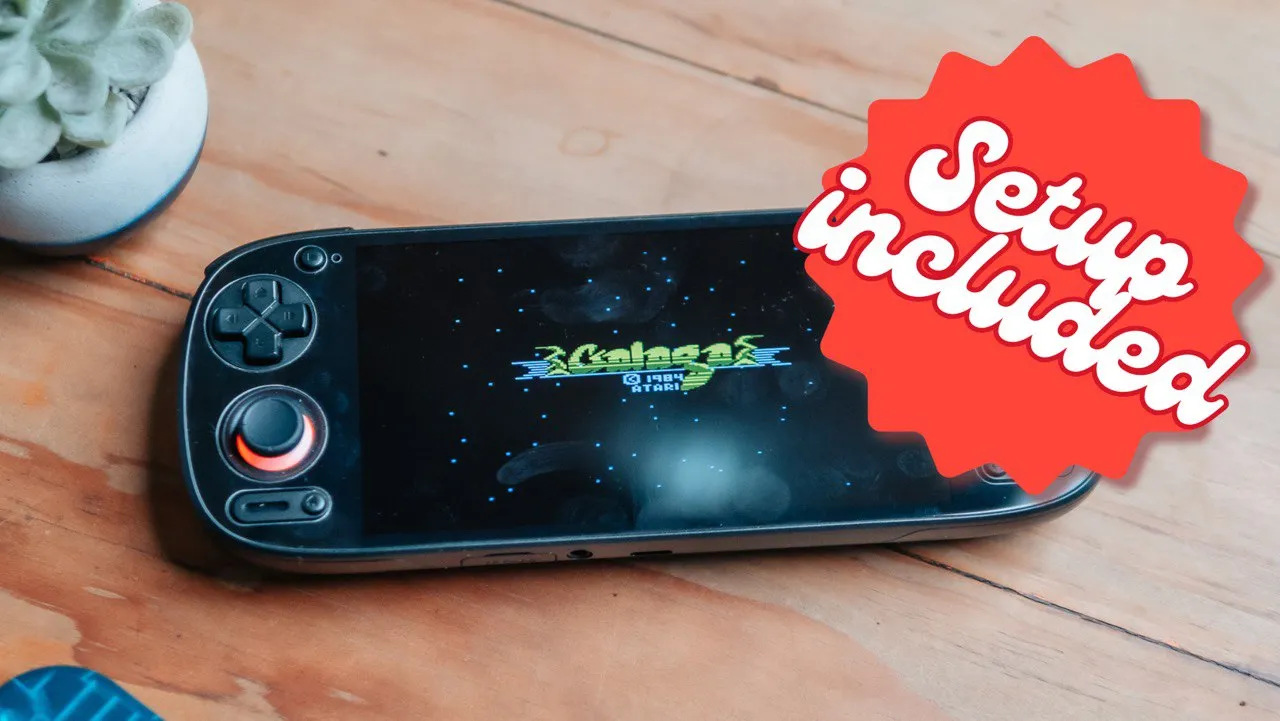
This guide is a slightly simpler version of my previous Retroid Pocket 4 Pro setup guide. I found that that guide was quite overwhelming for many people, and I honestly just don’t have the headspace to spend that amount of time on such a comprehensive guide again. Instead this guide will give you the tools to set up your device, using my knowledge from constantly setting these devices up when they get sent to me.
Also, this is a collection of links and resources that I think everyone will find helpful. I have added all the things you’ll need to download and tweak your handheld, including some of the naughty things that we aren’t allowed to talk about in my YouTube videos ;-)
Before you begin create a ROM folder
This is an obvious one but before you start, please create a folder on your device called Roms (or whatever) and start adding your Roms here. I highly recommend just starting small. For example, just put some Sega games on and get that setup using my guide. Then, once that’s set up, move onto something a bit more juicy like PSP. This will be far less overwhelming than trying to do everything at once.
So perhaps go ahead and start adding Roms at this point by plugging your device into your PC with the USB cable you got with the device and enable file transfer from the drop down menu on your device. Then simply create a folder, for example: 3DS and drag your 3DS roms over to the handheld storage.
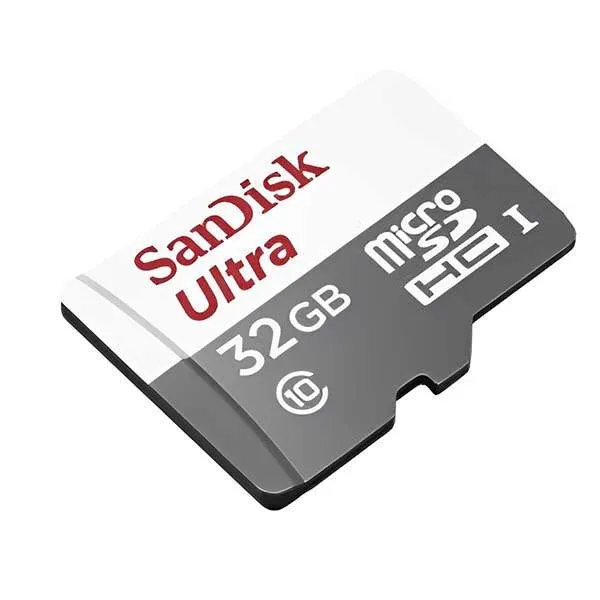
This would also be a good time to insert an SD card if you want some extra storage. It doesn’t have to be fancy: SanDisk Ultra is fine. Maybe 128 - 256gb.
Useful Links
Turnip Drivers: https://github.com/K11MCH1/AdrenoToolsDrivers/releases/tag/v24.3.0_r9 (this is the one that works the best for me)
Very helpful spreadsheet by Ryan Retro for tweaking your emulators: https://docs.google.com/spreadsheets/u/0/d/1BiFqYhWWJRHcR_O_LDbv2OwZ1kTLkClMd0uGVjpaXWw/htmlview#
The above link will help you tweak your games and find the best turnip drivers for each game.
Setting up Obtanium
Obtanium is a very handy app I heard about from Zu at the Retro Handhelds Discord. It allows you to collate all your Github apps into one app store style environment.
My Obtanium Apps
- Cemu for Android (WiiU)
- citron (Switch emulator performance focussed fork)
- Daijisho (frontend) or ES-DE
- Dolphin emulator (Wii and GameCube)
- Azahar (3DS)
- RetroArch (64bit version)
- Eden (Switch)
- Vita3k (PS Vita Emulator)
- NetherSX2 (Trixarian - PS2)
Easily add apps to Obtanium
To conveniently add apps to obtanium simply use this link: Obtainium Apps
Apps from the Obtanium Apps website:
- RetroArch 64bit
- Dolphin Emulator (Nightly)
For the rest you will need to follow these steps:
Adding apps manually to Obtanium
- Find the Release page for an app
- Here are the release pages for the apps I have recommended:
- Cemu: Release Cemu for Android External Screen Support · SapphireRhodonite/Cemu · GitHub
- Daijisho: Releases · TapiocaFox/Daijishou
- Azahar: https://github.com/azahar-emu/azahar/releases
- Eden (Switch): GitHub - eden-emulator/Releases: Eden’s Releases
- Vita3k: Releases · Vita3K/Vita3K-Android
- RPCS3 (PS3): GitHub - RPCS3-Android/rpcs3-android
- NetherSX2: Releases · Trixarian/NetherSX2-classic
- How to add apps:
- Open Obtanium and tap “Add App”
- At the top line past your Github release page (links privided above)
- tap the tick sign and then tap “Add”
- This can sometimes take a while if your internet is slow
- Then a page will appear and you can tap “Install” then “INSTALL” again
- And you’re off to the races!
Standalone emulators I’m NOT using on the Retroid Pocket 5
- Yabasanshiro 2 Pro (Play Store): Sega Saturn Emulation
- Mupen64 Plus FZ (Play Store): N64 Emulation
- Redream (Play Store): Dreamcast Emulation
- Duckstation (Play Store): PS One emulation
- PPSSPP Gold (Play Store): PSP emulation
- Drastic (Play Store): DS Emulation
I am leaving this here for clarity. On a powerful chip like the Snapdragon 865 on the Retroid Pocket 5, these emulators aren’t needed, we can simply use RetroArch for everything. But if you have issues, you can go back to these.
I do think a lot of people may still enjoy Drastic for DS emulation.
Setting up All Emulators
RetroArch 64bit Setup
Once downloaded and installed from Obtanium do the following:
- NB: DO NOT force quite while you’re doing this. YOU WILL LOSE ALL OF YOUR SETTINGS.
- Allow permissions
- Allow RetroArch to decompress
- Go to Settings > User Interface > Menu > xmb (For a smaller screen like the Retroid Pocket Mini just leave the menu to default)
- Back to main menu and select Quit
- Now re-open with the new menu system
- Now: Main Menu > Online Updater > Core Downloader >
- Go through and look for the systems you will be playing. Just download all related cores to make your life easier
- You’ll know it’s downloaded by the ”#” on the right
- Settings > User Interface > On-screen overlay > Display overlay OFF (alternative option to the video)
- Settings > Saving >
- Auto Save State ON
- Auto Load State ON
- Increment save state automatically ON
- Maximum Auto Increment Save States to keep 20 (or more)
- Settings > Achievements >
- Achievements ON
- Enter username and password (retroachievements.org)
- Hardcore mode OFF (or else you can’t load your saves)
- Settings > Input >
- Retropad binds > Port 1 controls
- Analog to digital type > left analog
- If you haven’t already, wiggle and analog stick and RetroArch will find an auto profile, make sure it’s selected under Device Index
- If anything isn’t mapped correctly you can map it here
- You can also “Save Controller Profile” here
- Settings > Input > Hotkeys >
- Hotkeys enable > L3 (left joystick button press)
- Menu toggle controller combo > Start + Select
- Menu toggle > back button
- Quit controller combo > L3 + R3
- Load State > L1 (left bumper)
- Save state > R1 (right bumper)
- Settings > Input > menu Controls >
- Menu swap OK and cancel buttons > OFF
- Once you have Daijisho setup you will need to circle back to this: Shader setup
- SHADERS: This is just one Shader but once you see how it works, you can play around and find your favourites
- Open a TV console game
- Quick Menu > Shaders > Video Shaders ON
- Load Preset > shaders_glsl > crt > crt-geom.glslp
- Shader parameters > CRTGeom Curvature Toggle > 0 > Press B
- Save Preset > Save Content Directory Preset > Press B until you are in the main menu
- Select “Quit”
- My shaders for handheld systems:
- GameBoy Advance: shaders_glsl > handheld > lcd-grid-v2-gba-color.glslp
- Gameboy Color: shaders_glsl > handheld > lcd-grid-v2-gbc-color.glslp
- Home and Quit to save your changes
- Add BIOS Files:
- I completely forgot about this in the video!
- Get your BIOS here: Google “retroarch system bios pack”
- Please drag the contents of that system folder to /RetroArch/system/ on your device
Nintendo DS Setup
Daijisho will set MelonDS as your default RetroArch core, but I want to suggest this one: melonds ds (you need to select the 64bit version in Daijisho later) - this emulator allows for touch screen inputs.
R2 (right trigger) will be mapped as “Layout Toggle” by default.
To change the screen layout (circle back to this after your Daijisho setup is done):
- Open a DS game
- Press Back button to bring up the menu
- Quick menu > Core Options > Screen > Screen Layout >
- For a small screen: Layout #1: Top Only | Layout #2
- For a medium sized screen: Layout #1: Hybrid (focus Top) | Layout #2: Hybrid (Focus Bottom)
- For a large screen: Layout #1: Left/Right | Layout #2: Right Left
- Then toggle between these with R2 (right trigger)
- You can experiment with this, for example, if you prefer to toggle between fullscreen and lef/right, then choose that as your two layouts
3DS Emulation Setup
Open Azahar
- Grant permissions > Allow > next
- Grant permissions > While using the app > next
- Grant permissions > While using the app > next
- Select user folder > select > [navigate to your 3DS folder] > ok > next
- Add games > [use 3ds folder] > Use this folder > Allow > Next
- Continue
- … at top left > GPU Driver Manager > Install > [find your turnip .zip file]
- Open a game
- Press back > Overlay options > Uncheck Show Overlay
- Close the game and go to settings
- Make sure your controller style is set to Retro withing the Android top dropdown menu (or whatever controller style you plan to use most of the time)
- Settings > Gamepad > map buttons
- Swap screens > R3
- Cycle Layouts > L3
- See video for more clarity
- Settings > Graphics > Graphics API > Vulkan
- When you open a game > back button > Overlay Options > Uncheck “Show Overlay”
For piracy and licensing reasons, Azahar only supports decrypted roms. Here is a rom decryption tool: https://gbatemp.net/threads/batch-cia-3ds-decryptor-a-simple-batch-file-to-decrypt-cia-3ds.512385/
Once you have decrypted the roms you can change the file extension from .3ds to .cci
Cemu Emulation Setup
- Copy File keys.txt (Google “keys.txt for cemu”) To Files > Retroid Pocket 5 (internal) > Android > data > info.cemu.Cemu > files > Here [easiest to do this while connected to your computer]
- ROMS: wua format works well
- Tap the cog top right
- General settings > Add game path > + > Use this folder > Allow
- Input settings > Controller 1 > Emulated Controller > Wii U Gamepad
- map your controls here
- Blow mic = L2
- see more in the video
- Graphic packs > download icon > if a game has a custom graphic pack it will load here
- Tap the download icon at the top right
- You can go into these packs and enable them and fix games that aren’t working
- Start a game > cog at top left > Uncheck Show input overlay
- Your mileage will vary here, this is essentially an experimental emulator
Dolphin Emulation Setup
- Open Dolphin
- You can enable or Disable statistics reporting
- Gamecube tab
- Add Games > [choose your gamecube roms folder] Use this folder > Allow
- Wii tab
- Add games > Add games > Use this folder [choose your wii roms folder] > Allow
- Cog icon top right >
- Config > General > Enable savestates
- Graphics settings > Video backend > Vulkan
- Graphics settings > GPU Driver > Install driver > [find your turnip driver] - Get a driver here
- Gamecube input
- Tap on the cog to the right of “Gamecube Controller 1” (if you plan to use a dock you may want to use the controller profile option and create a profile for the dock and the handheld)
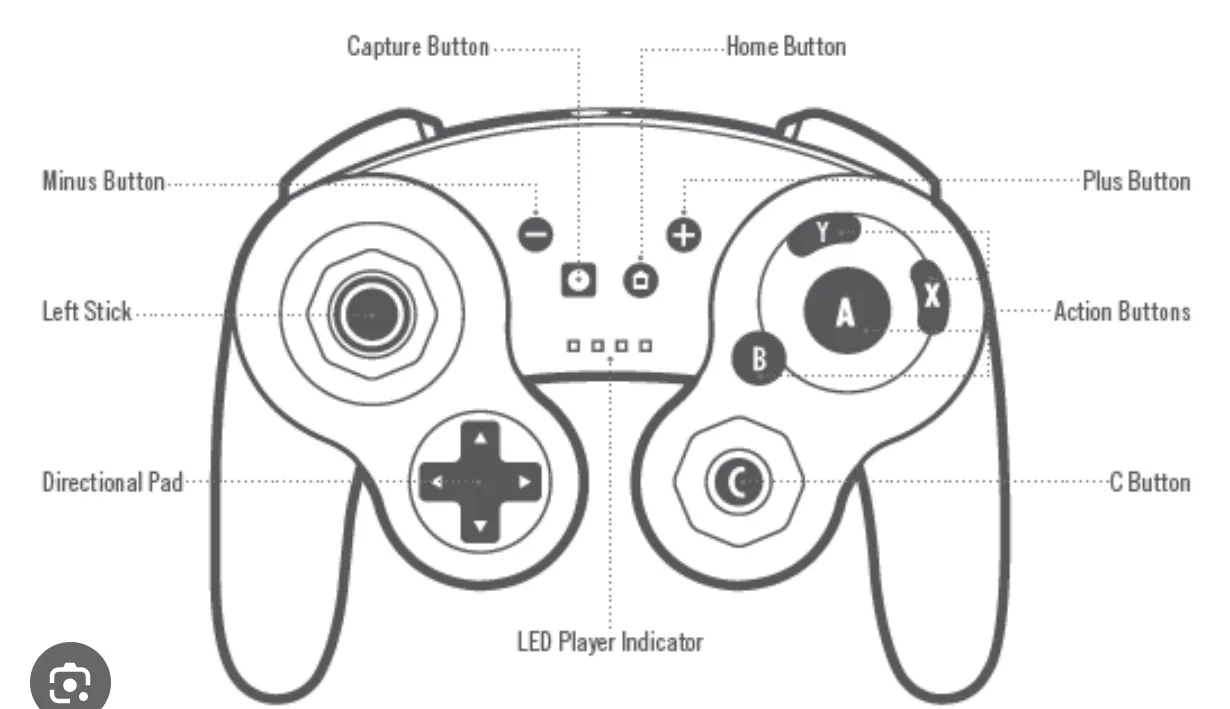
- Z = R3
- Wii Input
- Tap the cog to the right of “Wii remote 1”
- Buttons
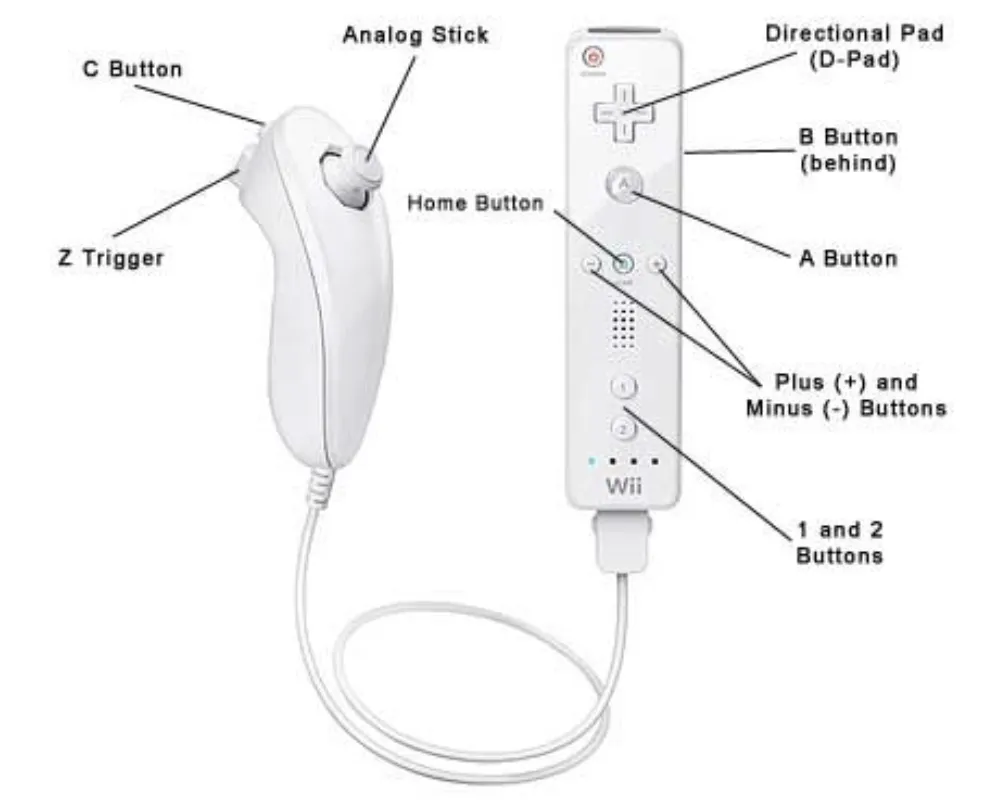
- A = A
- B = B
- 1 = X
- 2 = Y
-
- = SELECT
-
- = START
- HOME = R1
- Extension - Nunchuk
- C = L3
- Z = R3
- Stick = Left joystick
- Unfortunately due to the the way the wii was made you have to do a but of digging for each game and set the controls up as you go
- You will need to toggle the overlay for Gamecube and Wii once you’ve launched a game (back button for menu)
- There are some really nice Wii games that used a standard controller layout, some of them even feature a plumber and his brother!
NetherSX2 Emulation Setup
- Download and install NetherSX2 4248: Releases · Trixarian/NetherSX2-classic
- Once Nethersx2 is installed, tap the Next button at the bottom right
- Next
- Next
- Optimal/Safe Defaults
- Import BIOS (if you don’t have it just look it up on Google) - you just need one. You may need to unzip the filder to get to the .bin file.
- Next
- Game directories > tap + > if you haven’t already, create a PS2 folder now, open it and tap USE THIS FOLDER, Allow
- Finish
- Tap the hamburger icon at the tap left (3 lines)
- App Settings > Graphics > Vulkan
- you can upscale the image here for certain games
- Now go back and tap Controller Settings
- Controller settings >
- Touchscreen > Touchscreen controller view > None
- Controller Port
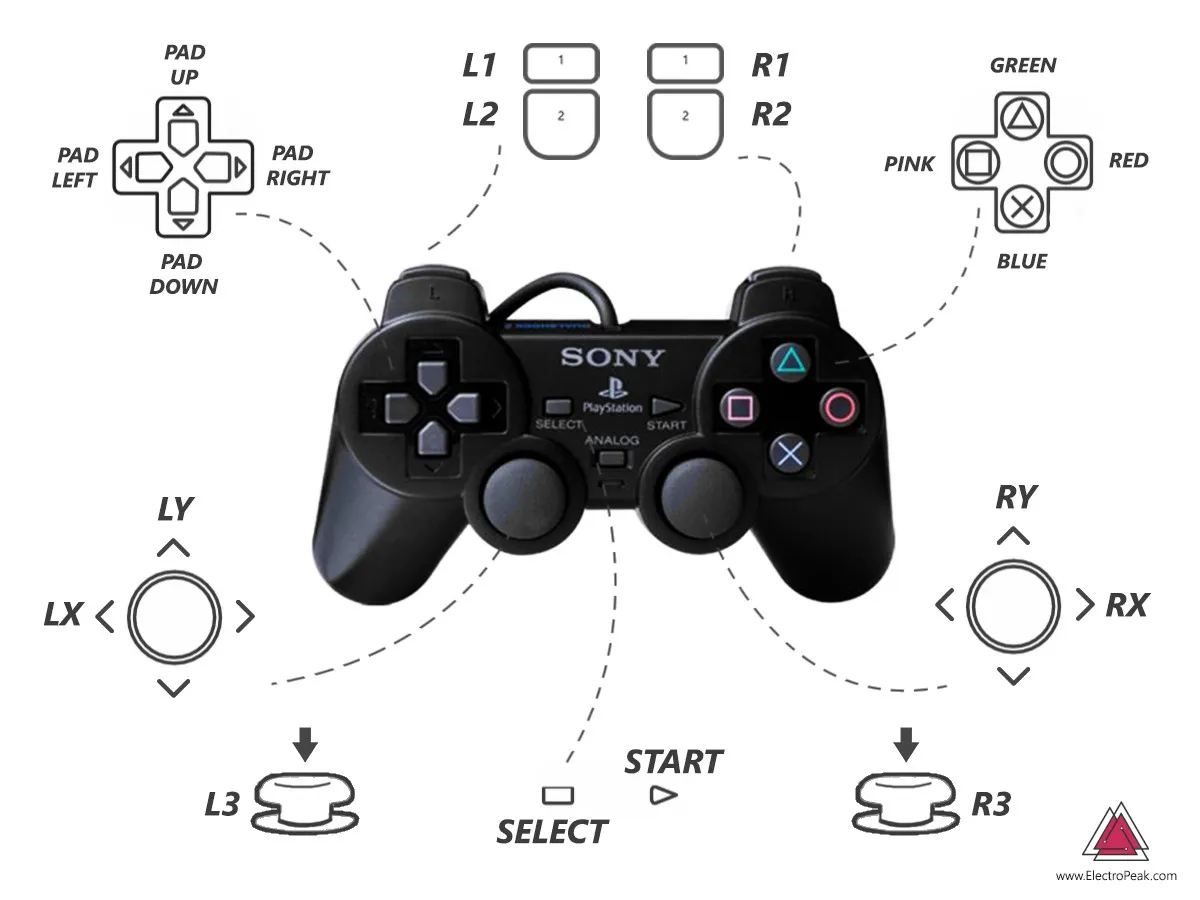
- Map controls accordingly
Yuzu etc Setup
- Yuzu/Suyu/Sudachi/Citron - if you don’t have an old version of Yuzu, get Suyu, Citron, Sudachi (see obtanium setup above)
- I am using Sudachi because its the default selection for Daijisho which will make your life easier later on
- Start Sudachi
- Grant permissions > Allow > next
- Select Keys > find your prod.keys > next
- Select Title Keys > find your title.keys > Next
- Add games > find folder with games > Use this folder > Allow > Ok
- Continue
- Tap cog at top left > GPU driver manager > + Install > [add your turnip driver]
- Manage Sudachi Data > Install Firmware> zip file
- There are actually a bunch of emulator forks:
- Yuzu https://yuzu-emulator.net/
- Suyu https://git.suyu.dev/suyu/suyu/releases
- Sudachi [Releases · emuplace/sudachi.emuplace.app](https://github.com/emuplace/sudachi.emuplace.app/releases) (Daijisho selects Sudachi by default at the time of writing this)
- Citron emulator (good performance): https://git.citron-emu.org/Citron/Citron/releases
- Check Ryan Retro’s spreadsheet for lots of helpful tips: https://docs.google.com/spreadsheets/u/0/d/1BiFqYhWWJRHcR_O_LDbv2OwZ1kTLkClMd0uGVjpaXWw/htmlview#
Vita Emulation Setup
- I never spoke about this in the vid but this is another fun nerd project to get into.
- Basic setup
- Open the app
- Select language > Next
- Next
- Download Firmware > Long press on “Donwload update” > select Download Link > Keep
- Return to Vita3k
- Download Font Package > Press and hold on the link provided > Download Link > Keep
- Return to Vita3k > Install Firmware > Select PSP2UPDAT.PUP.PUP in your downloads folder
- Next
- Next > OK
- Disable the nag screen
- Create a user
- Adding Games:
- Get roms from https://nopaystation.com/
- On your PC click on browse and download the .pkg and work.bin file for a game
- Tell your browser it’s okay to download the .pkg file
- Have your device plugged in and set to file storage
- Create a folder in your vita folder on your device, noting the name of the game and naming the folder with the game’s name
- Now drag the .pkg and the work.bin file over to that game folder
- In Vita3k goto File/Install .pkg - and add the .pkg, and then add the work.bin file
- There’s also an option to install .vpk and .zip files
- Configuration > Settings > GPU Tab
- Add custom driver
- Use that 9v2 turnip driver I suggested in the beginning
- Now select it from the drop down menu and tap Save
- You may need to shut the app down and double check that it saved
- Controls > Overlay > UNcheck “Show gamepad overlay ingame
- Vita3k is hot and miss but the app actually notes playability with RED (not playable), ORANGE (somewhat playable) and GREEN (playable)
PS3 Setup
- As mentioned above, get RPCS3 here GitHub - RPCS3-Android/rpcs3-android
- It is important to note that this is only in Alpha release at the time of writing this, meaning that this is a very unrefined experience, but it is VERY exciting too :-)
- Add the Github release to Obtanium as explained above
- Open RPCS3 > Allow
- Click on this link from your handheld: https://www.playstation.com/en-us/support/hardware/ps3/system-software/
- Tap on Update using a computer, and download the file - press and hold and tap “Download Link”
- Tap “Keep”
- Go back to RPCS3 and tap the 3 stripes at the top left
- Tap “Firmware:None”
- Select PS3UPDAT.PUP - this will take a few miutes to install
Daijisho Setup
- Download Daijisho via Obtainium and explained above
- Use the first Daijisho App that downloads (lately there have been two)
- Settings > Appearance >
- Download wall papers > I’ve been enjoying Epic Retro Noir. 2Clean Dai Black V2 is also good.
- Dark theme > Dark
- Pure dark theme > ON (for OLED screens)
- Settings > Navigation >
- You can change the homepage here > I set mine to widgets
- You can set a search hotkey here
- Settings > Library >
- Download platforms (game systems)
- “Clear all disjointed items” is handy if you have changed the ROMs in your roms folder and some games are no longer available
- Navigate to the main Library tab (the frontend)
- do this for each system:
- Paths > ADD MORE > find the relevant games folder > USE THIS FOLDER > ALLOW > sync
- Tap the pen icon at the bottom right to ensure Daijisho has selected the right emulator - eg. for PSP mine says: 127 - psp - RetroArch 64 - ppsspp
- My video guide will be a bit clearer on all this
- do this for each system:
- Navigate to Widgets
- New Widget > Pin and Play > search for your fav games > pin them
- New widget > App shortcut > use this to pin android games or emulators like Citron that dont work via Daijisho yet
- Make Diajisho your Android Home Page
- Android Settings > Apps > Default Apps > Home Page > Daijisho
GameHub Emulator
- Download - GameHub Emulator v3.0.2 [Latest]
- More to follow soon!
ES-DE
Custom emu options for es-de (Switch): https://github.com/GlazedBelmont/es-de-android-custom-systems
Download them and add the to ES-DE/custom_systems
A big downside for me with ES-DE is that it’s quite a process to get it to manage 2 storage facilities i.e. your internal ssd and an external sd card.
Alot was covered here that ISN’T in my video. Please check my video guide for clarity on a few things that work better visually. But this should set you on your way to emulation success! Good luck :-)